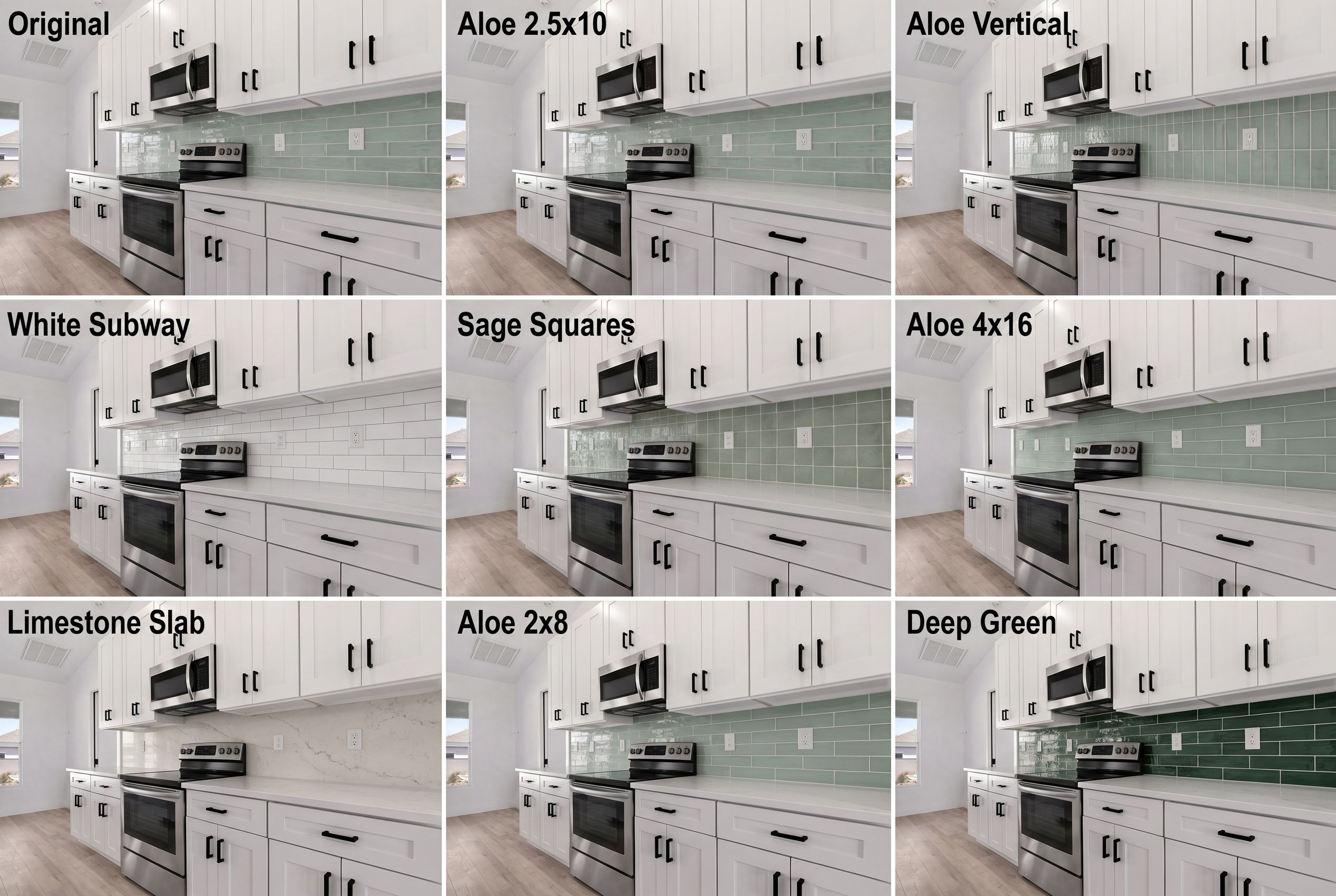
Virtually stage a room photo with AI
Upload a room photo to EDIT, pick a style and a room type, and it adds photorealistic furniture, lighting, and shadows while keeping the same camera and crop. Each successful generation is $0.50 with no subscription, and you can clear existing furniture first if the room is already furnished.
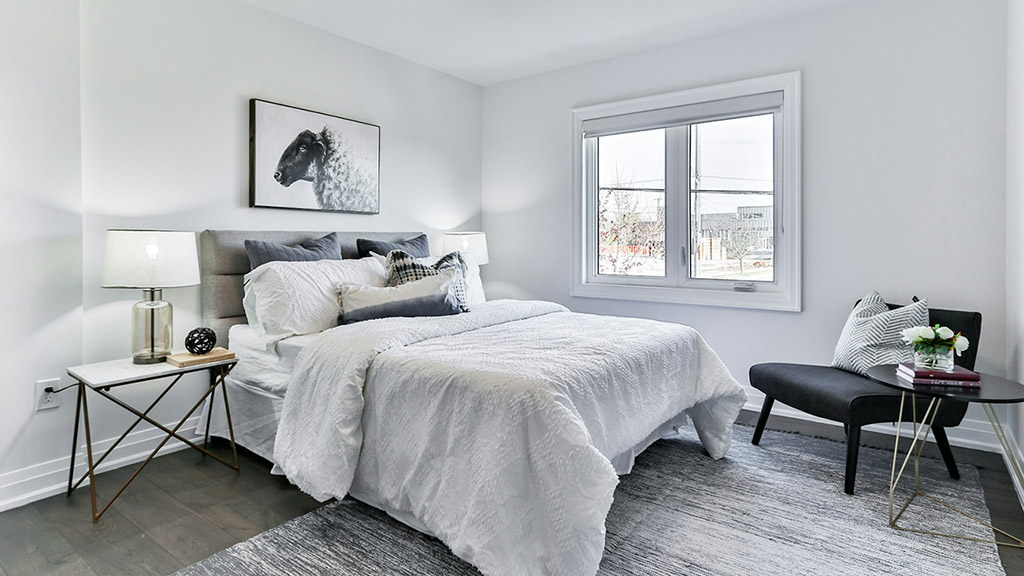
How it works
1Upload a room photo
Click + New and upload a clear interior photo. Empty, builder-grade, or lightly furnished rooms work best.
2Clear the room if needed
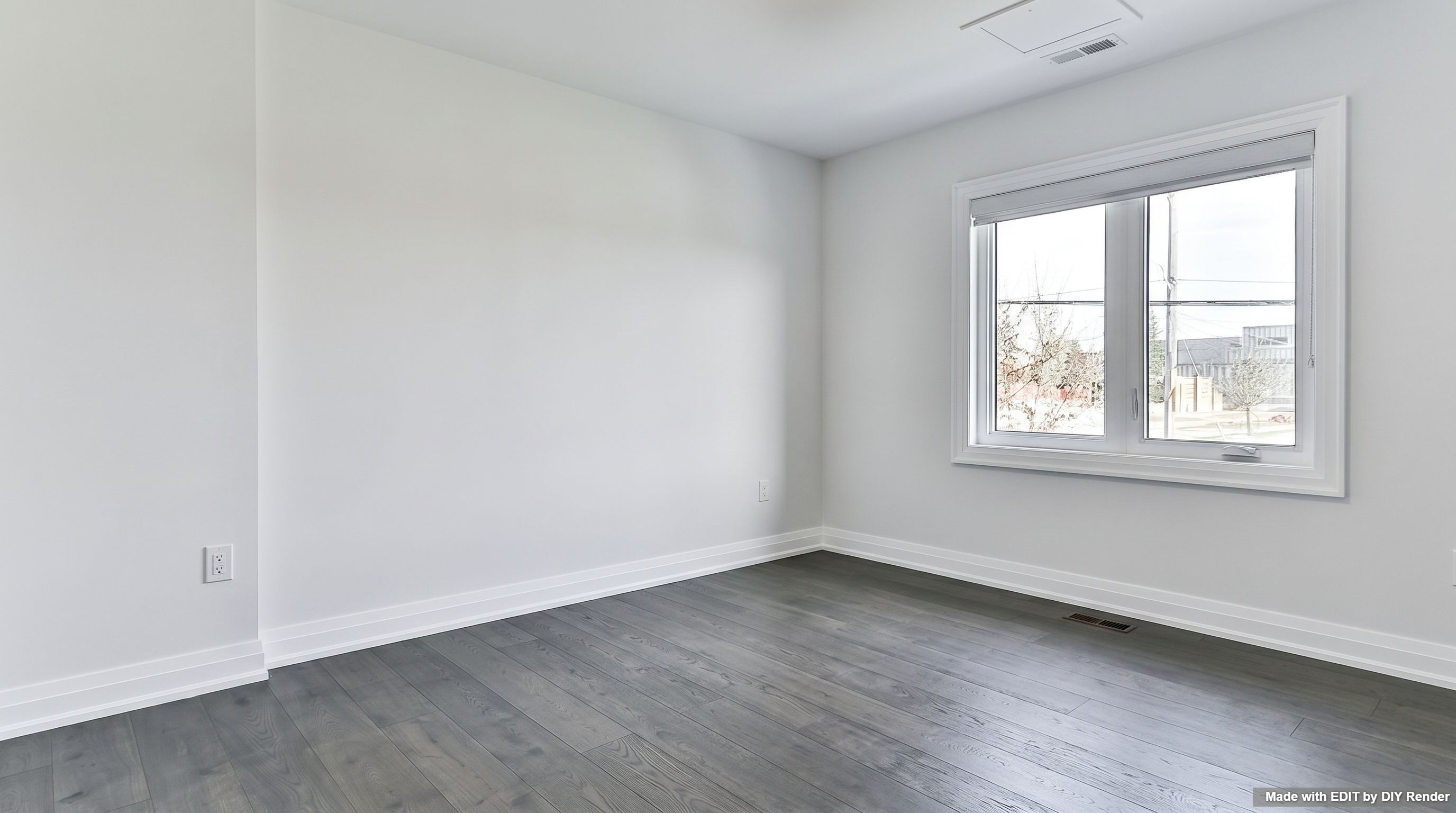
To stage from scratch, run the remove furniture prompt first and stage the empty result.
3Pick a style and room
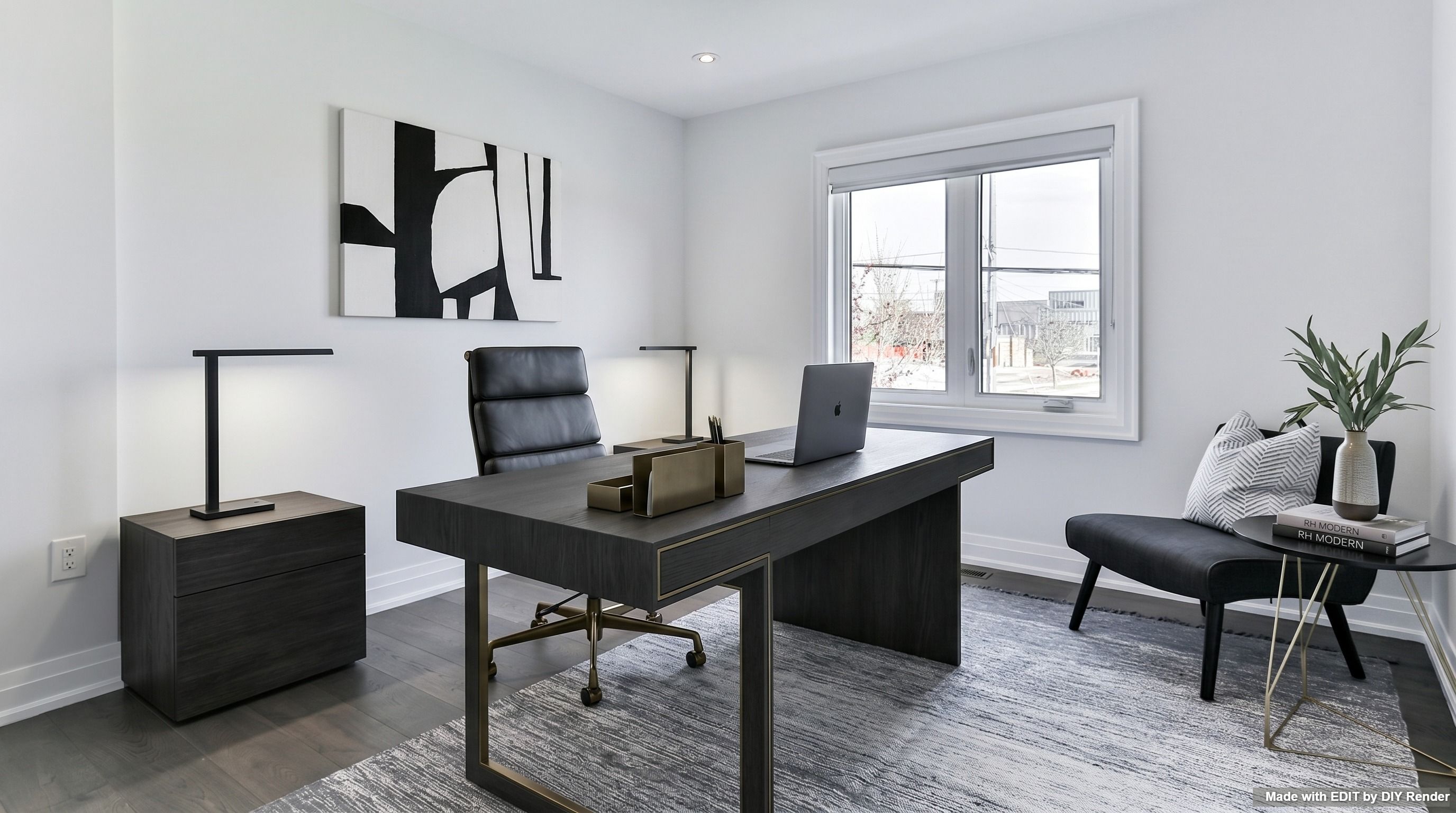
Click a Prompt Option in the Assistant, or paste a prompt with a style token and a room label such as RH MODERN and OFFICE.
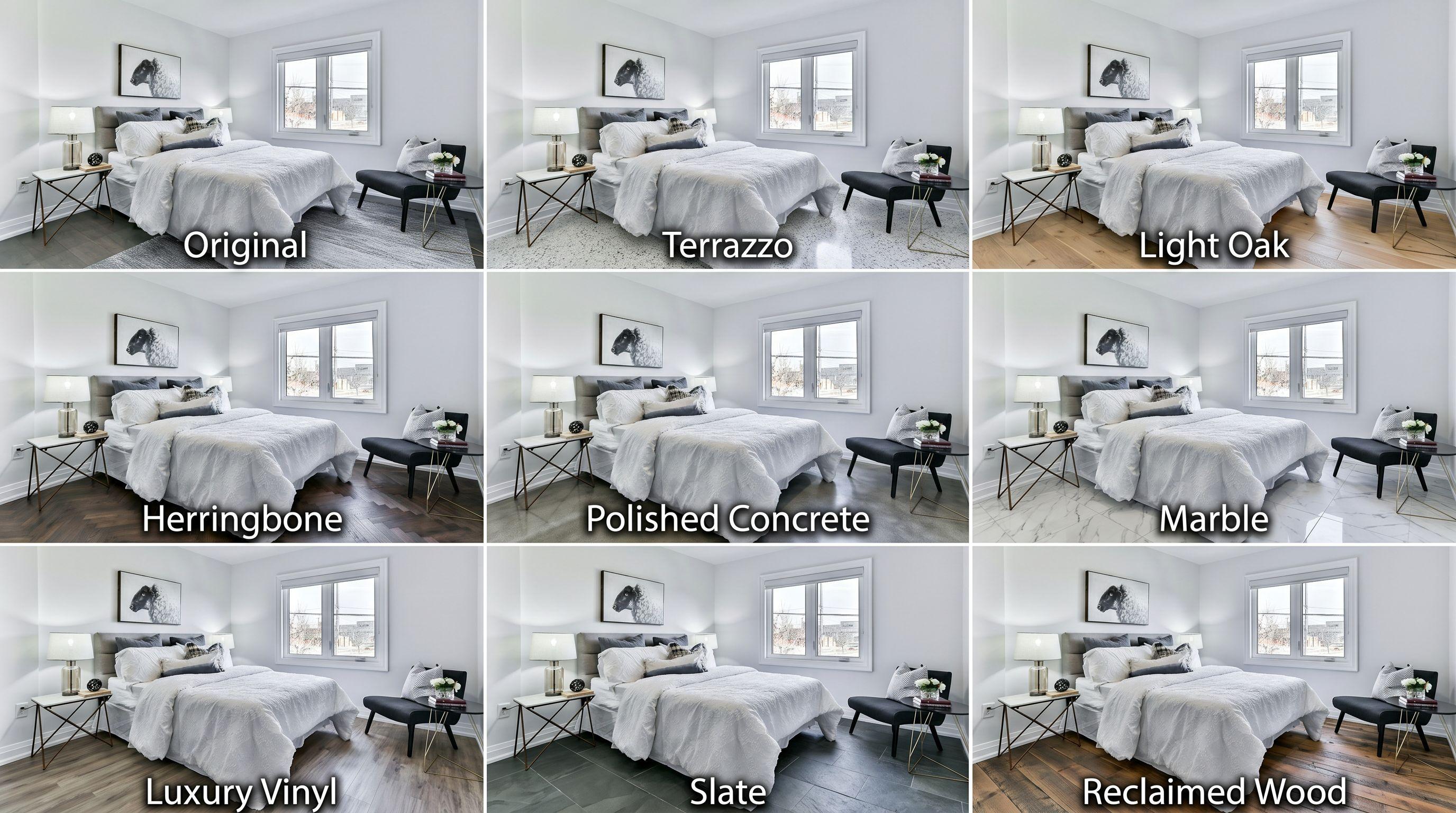
4Compare finishes
Run a Flooring Styles grid on the staged room, then use Enhance Image on the panel you like.
Examples to start from
Rooms and styles
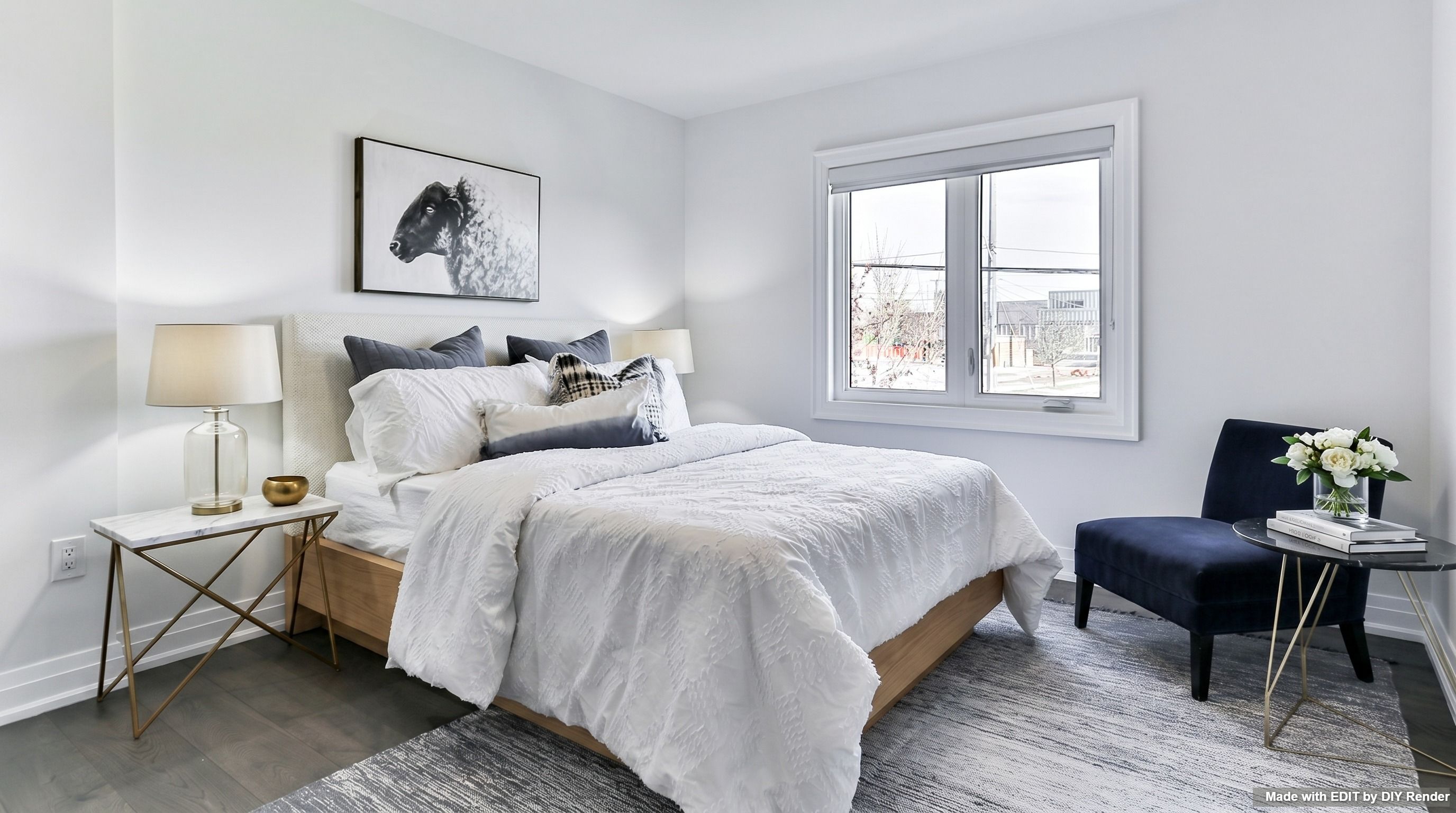
- Minimalist bedroomThe MINIMALIST WILLIAMS-SONOMA token on a bedroom photo.
- RH Modern officeThe same room turned into a home office with the RH MODERN token.
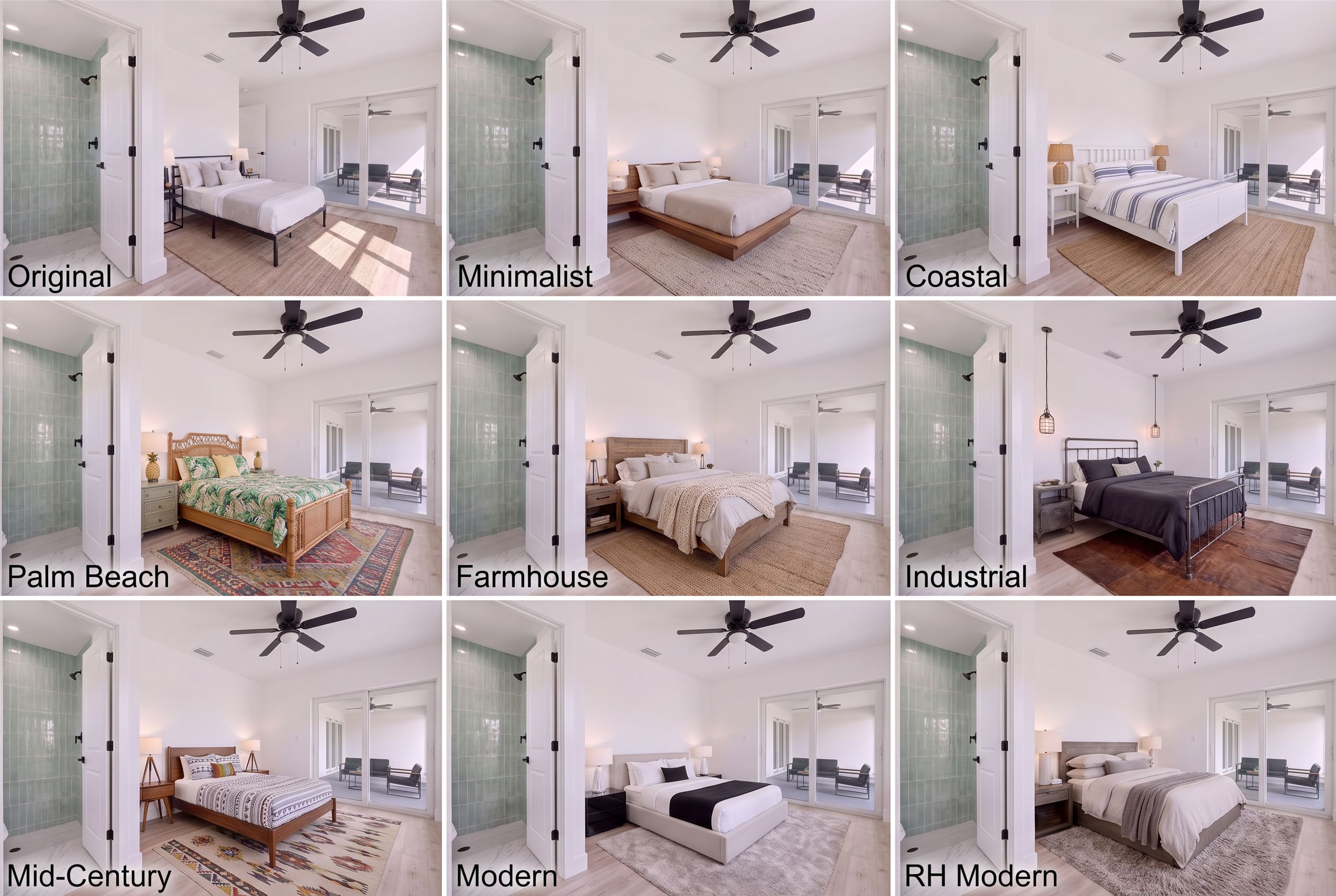 Bedroom furniture stylesNine furniture styles on four bedrooms in one house.
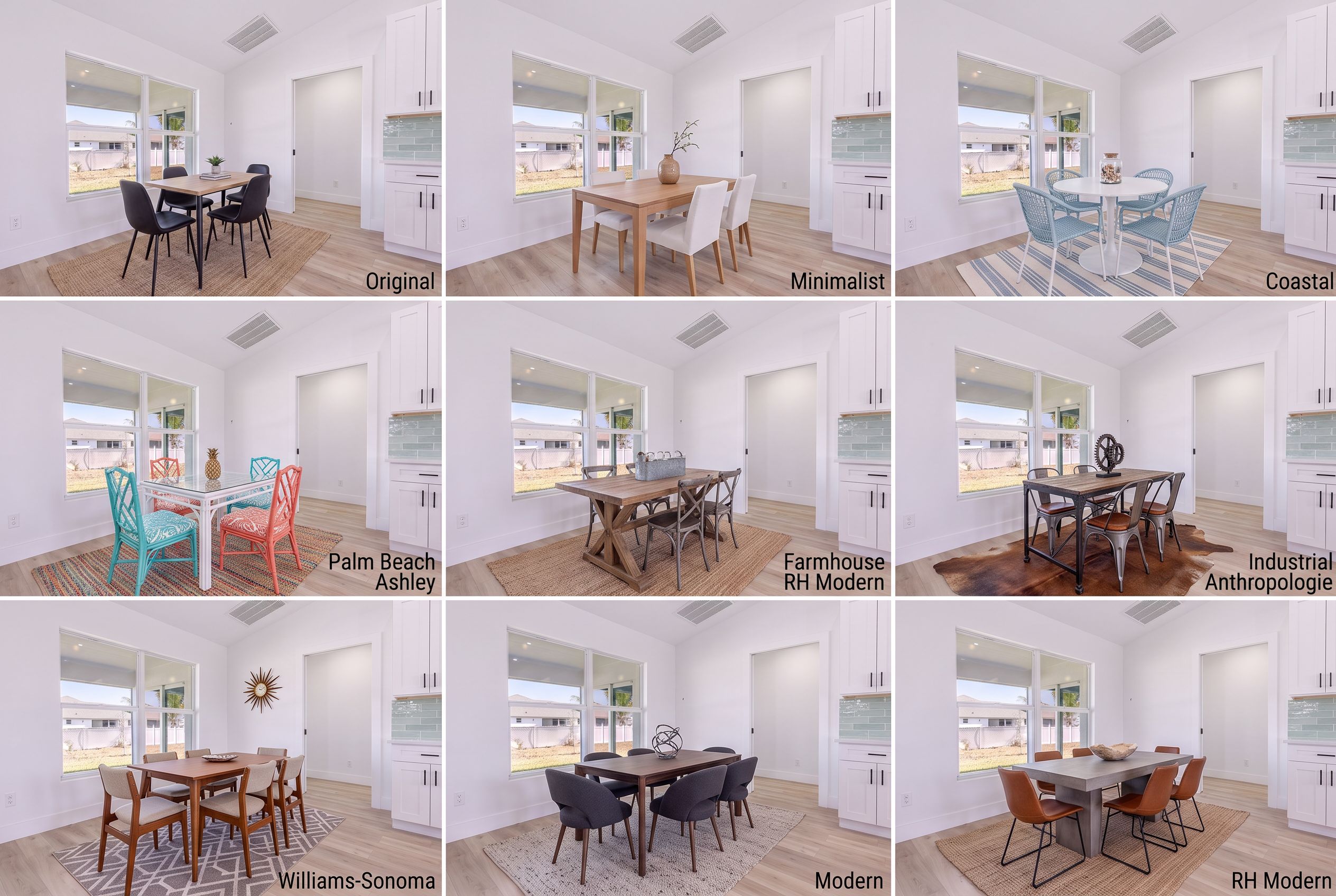 Dining nookNine furniture styles, with the Aloe band kept in every panel.
Tips for better results
- Style and room tokens set the look. Swap the style token to try another look on the same photo.
- Every staging prompt ends with Maintain composition, which keeps the crop and camera angle of your original.
- In the remove furniture prompt, use the room type that matches the photo, such as BEDROOM.
- Grids are only available in EDIT. Open them with the Grids button above the main prompt area or from the Assistant Cheat Sheet.